In this codelab you will learn how to set up a developer environment on your local machine so that you can follow along with the content of this course
The language for this course is Python. You can download it for your computer here. As of the time of writing this course, the latest stable version of python is version 3.14.2 released Dec 5th 2025, and this is what would be used.
Complete the installation on your device, accepting the default options where necessary
Option 1 (VSCode)
This is the editor recommended for this course as it's lightweight and not resource intensive which is great for laptops or devices that do not have much RAM, slow CPU or slow hard drive. The labs will be demonstrated using this editor. You can download this here
Option 2 (Pycharm)
While the labs would be demonstrated using VSCode, another tool you may use is the Jetbrains Pycharm IDE which you can get at here
Please note that for the lab exams, you MUST use vscode.
After downloading and installing Visual Studio Code, open the extension marketplace by selecting the highlited icon on the left panel of the VSCode window

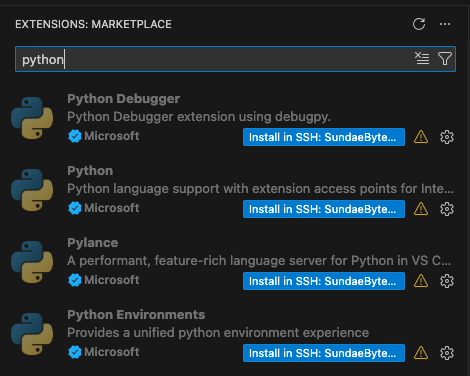
With the extension marketplace open, search for "Python" and install the following 4 extensions. You may need to restart VSCode after installing all 4 extensions for them to be loaded.
Git is a version control software that you'd need to use for this course. You can download git using the link here
It is recommended that you store your code in a structured way so that you can easily navigate to it as needed.
For example, the layout below shows a main info2602 folder with 2 subfolders
- labs
- notes
The lab folder has a number of subfolders, each corresponding to a lab. Each subfolder in the lab folder contains the code for that lab
The notes folder contains notes you take.
info2602/
|--labs/
|  |--lab1/
|     |-- main.py
|     |-- otherfile.csv
|  |--lab2/
|     |-- main.py
|--notes/
|  |-- lecture-1-notes.docx
|  |-- lecture-2-notes.docx
|  |-- lecture-3-notes.docx
With a structure like this, it would be easy to refer to lab 1's code by simply opening that folder in your editor of choice.
To verify your set up, create a folder and open that folder in VSCode. Once that folder's open, create a new file named main.py and paste the following code.
print("Hello world")
Run the file by opening the terminal in vscode and typing the following command python main.py.
Once you see the "Hello World" bring printed out to the terminal, your computer is configured properly